Physical Address
304 North Cardinal St.
Dorchester Center, MA 02124


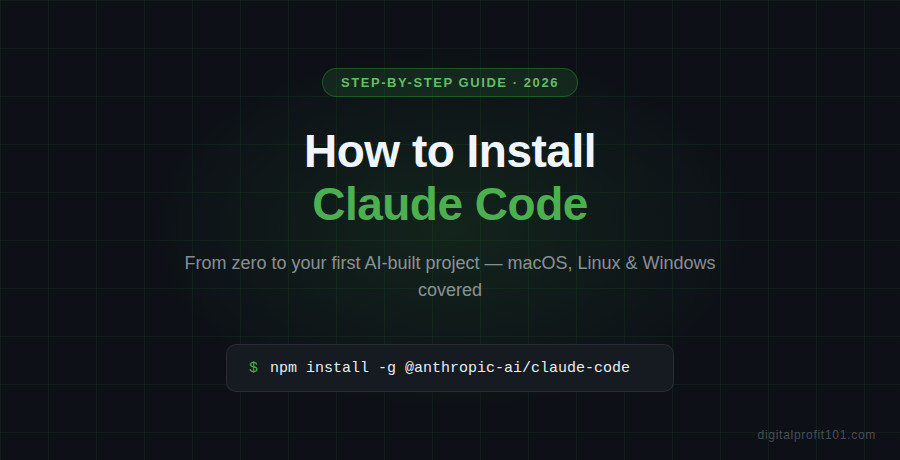
How to Install Claude Code – step-by-step guide for beginners (2026)
How to Install Claude Code (Step-by-Step, 2026)
Install Claude Code on macOS, Linux, or Windows in under 15 minutes – complete walkthrough with commands, troubleshooting tips, and your first test project.
| SEO TARGET Primary: how to install Claude Code | Secondary: Claude Code installation guide 2026, install Claude Code Mac, Windows, Linux | Read time: ~9 min | Target: 1,800–2,200 words |
If you read my previous post on what Claude Code is and came away thinking “I want to try this,” – this guide is for you.
I’m going to walk you through the complete installation process, step by step, on any operating system. No assumptions about your technical background. By the time you reach the end of this post, you will have Claude Code running on your machine, and you will have sent your very first instruction to it.
Let’s go.
Before installing Claude Code itself, you need four things in place. Three of them are completely free.
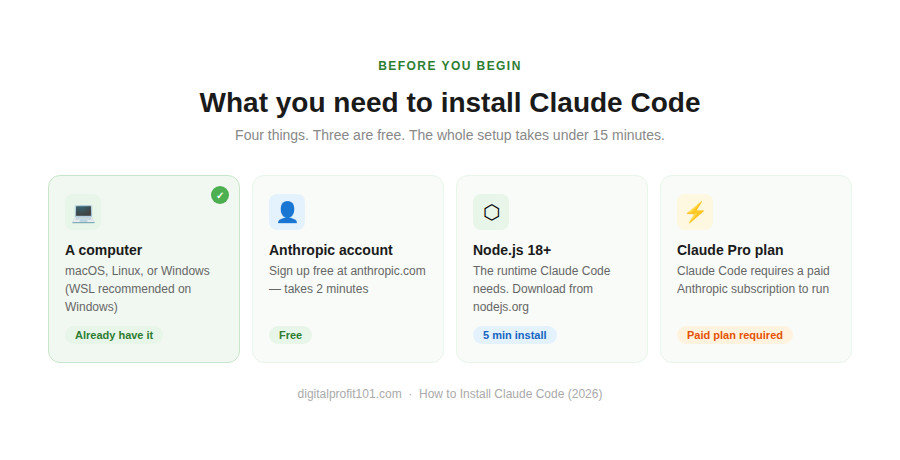
Everything you need before installing Claude Code
| Requirement | Notes |
| A computer | macOS 12+, any Linux distro, or Windows 10/11 (WSL recommended) |
| Anthropic account | Free to create at anthropic.com – takes 2 minutes |
| Node.js version 18+ | Free to download from nodejs.org – takes about 5 minutes to install |
| Claude Pro or Team plan | Claude Code requires a paid Anthropic subscription |
| Why does Claude Code need a paid plan?Claude Code uses the same powerful AI model that runs Claude Pro, making real decisions and executing real code. The computational cost of that is why it requires a paid subscription. Claude Pro is currently $20/month – and for what it enables, that is genuinely good value. |
Node.js is the runtime environment Claude Code needs to operate. If you’ve never heard of it, think of it as the engine it runs on. Here’s the quickest way to install it:
nvm (Node Version Manager) is the cleanest way to install Node.js. Open your terminal and run:
| # Install nvmcurl -o- https://raw.githubusercontent.com/nvm-sh/nvm/v0.39.0/install.sh | bash # Restart your terminal, then install Node.jsnvm install –ltsnvm use –lts # Verify it workednode –version # Should show v20.x.x or highernpm –version # Should show 10.x.x or higher |
Windows users: Claude Code works best through WSL (Windows Subsystem for Linux). Before anything else:
| Already have Node.js?Run node –version in your terminal. If it shows v18.x.x or higher, you are good to go. If it shows something older, run: nvm install –lts && nvm use –lts to upgrade. |
With Node.js in place, installing Claude Code is a single command. Open your terminal (or WSL on Windows) and run:
| npm install -g @anthropic-ai/claude-code |
The -g flag installs Claude Code globally, meaning you can run it from any folder on your computer. The installation takes 30–60 seconds.
When it’s done, verify it worked:
| Claude –version |
You should see a version number printed back. If you do, Claude Code is installed.
| Alternative installation methods: macOS Homebrew: brew install claude-code, Windows WinGet: winget install Anthropic.ClaudeCodeNote: Homebrew and WinGet installs do NOT auto-update. Run brew upgrade claude-code or winget upgrade Anthropic.ClaudeCode periodically to stay current. The npm install method above auto-updates in the background. |
Claude Code needs to authenticate with your Anthropic account before it can do anything. This is straightforward:
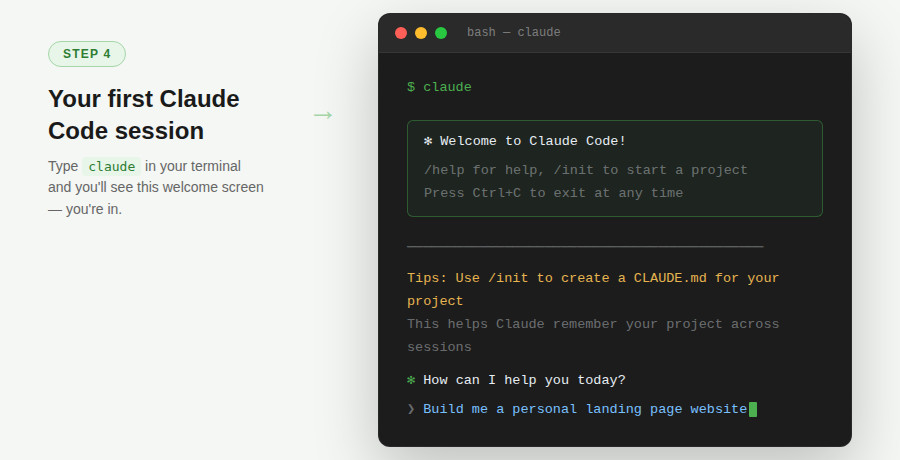
The Claude Code welcome screen after successful login
| Session expired?If Claude Code ever says your session has expired or authentication failed, simply run: claude /login – this re-authenticates you without needing to reinstall anything. |
This is the moment. Claude Code is running. Let’s give it something to do.
Start by creating a test folder and navigating into it:
| mkdir my-first-projectcd my-first-projectclaude |
Now, at the Claude Code prompt, type this instruction:
| Your first instructionCreate a file called hello.html that contains a simple webpage. It should have my name as the page title, a heading that says ‘Hello from Claude Code!’, and a short paragraph below it welcoming visitors to my site. Make it look clean and professional. |
Watch what Claude Code does. It will:
Then open the file in your browser:
| # macOSopen hello.html # Linuxxdg-open hello.html # Windows (WSL)explorer.exe hello.html |
You should see a proper webpage in your browser. You just built something with AI in under two minutes – without touching any code yourself.
Once you’re inside Claude Code, here are the built-in commands you’ll use most often:
| Command | What it does |
| /help | Shows all available commands and keyboard shortcuts |
| /init | Scans your project and generates a CLAUDE.md memory file |
| /clear | Clears the conversation history and starts a fresh session |
| /compact | Summarises the conversation to free up context space |
| /model | Switch between Claude models (speed vs. power) |
| /cost | Shows how many tokens you have used and the estimated cost |
| /mcp | Shows the status of any connected external tools |
| /doctor | Runs diagnostics — useful if something isn’t working |
| Escape | Cancel the current operation or stop a running task |
| Ctrl+C | Exit Claude Code completely |
| Pro tip: run /init on every new projectThe /init command creates a CLAUDE.md file in your project root. This is a plain text file where Claude Code stores memory about your project – your tech stack, your coding standards, your preferred commands. Without it, every new session starts from scratch. With it, Claude Code already knows your project. |
If you use VS Code as your code editor, you can bring Claude Code directly into it – inline diffs, chat panel, the works. Here’s how:
| RecommendationEven if you plan to use the VS Code extension long-term, spend your first few sessions in the terminal. The terminal gives you the most transparent view of what Claude Code is doing at every step. Once that clicks, the extension feels natural. |
Here are the most common issues and their fixes:
| Error | Fix |
| claude: command not found | Run: npm install -g @anthropic-ai/claude-code again. On Mac, try: sudo npm install -g @anthropic-ai/claude-code |
| Authentication failed | Run: claude /login to re-authenticate your Anthropic account |
| node: command not found | Node.js isn’t installed or isn’t in your PATH. Restart your terminal after installing via nvm |
| Permission denied errors | On macOS/Linux run: sudo npm install -g @anthropic-ai/claude-code, or configure npm to use a local directory |
| Windows path issues | Make sure you’re running commands inside WSL, not native Windows PowerShell |
| Claude Code running slowly | Switch to a faster model inside Claude Code using the /model command |
If you’re still stuck, run /doctor inside Claude Code for automated diagnostics, or check the official documentation at docs.anthropic.com.
You now have Claude Code installed, authenticated, and ready to build. The hello.html file you created is just a taste – the same workflow scales to complete websites, APIs, full-stack apps, and automated pipelines.
The most important thing at this stage is to start giving Claude Code real instructions. Don’t wait until you have the perfect project idea. Practice describing things in plain English and see what it builds. The more specific your instructions, the better the results.
| What to read nextNow that Claude Code is installed, the next skill to develop is prompting – writing instructions that get exactly the result you want. Read: The CRISP Prompting Framework – Get Better Results from Claude Code → |
| Go deeper with the book. Everything in this post is covered in far more detail – including building your first complete project – in How to Use Claude Code to Create Anything by Ifeyinwa C. Ofulue (2026). Get your copy at the link below. |
Ifeyinwa C. Ofulue is a writer, web developer, UX designer, digital product creator, and researcher focused on AI tools, automation, UX design, and online business systems. He is the author of How to Use Claude Code to Create Anything and several other digital guides on online income, AI tools, and building profitable digital products. He helps beginners learn how to create digital products, build profitable websites, and use modern AI tools to generate income online. Find his work at digitalprofit101.com.
Through this website, I share practical tutorials, step-by-step guides, and proven strategies on topics such as AI productivity tools, website monetization, digital marketing, and automation.
My mission is simple: to make online business and digital skills accessible to anyone willing to learn.
When I’m not researching new web designs, AI tools, or writing tutorials, I focus on building scalable online systems and testing new ways to help creators earn online.
👉 Learn more about Ifeyinwa on the About page.